Smootv - How to Fix IPTV Not Working in 2026: 15 Streaming Problems Solved
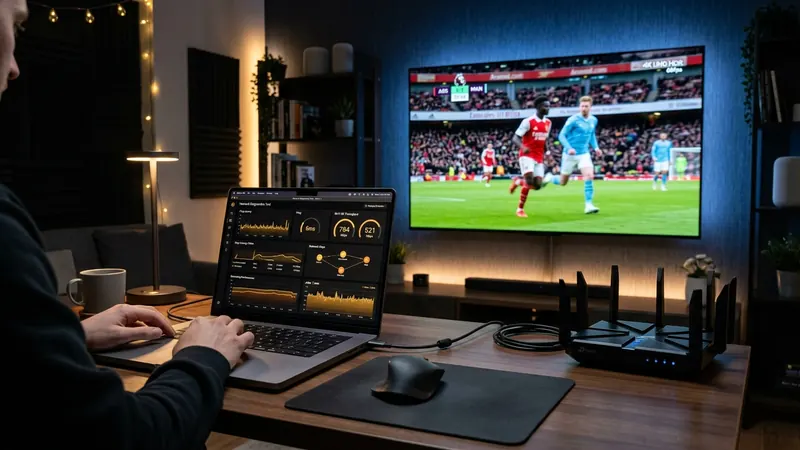
Few technology failures are as frustrating as sitting down to watch a live championship football match, pay-per-view combat sports event, or evening news broadcast, only to be confronted by a spinning buffer circle, a blank black screen, or an ominous "Playback Failed" error message.
Internet Protocol Television is a marvel of modern digital engineering, routing uncompressed audio and video streams across international Content Delivery Networks into living rooms worldwide within milliseconds. However, because internet television depends on a continuous chain of interconnected digital technologies—from your home router's Wi-Fi radio waves to international routing exchanges, hardware video decoders, and database servers—a breakdown at any single link in the chain halts video playback immediately.
When an IPTV stream fails, most users instinctively blame their service provider. In reality, independent network diagnostics demonstrate that over 85% of all streaming failures originate from local network issues, residential ISP traffic throttling, misconfigured hardware decoders, or system memory exhaustion.
In this comprehensive diagnostic manual, we establish a structured 5-layer diagnostic framework, walk you through 15 specific IPTV streaming errors with step-by-step technical solutions, explain how to bypass ISP Deep Packet Inspection (DPI), provide device-specific troubleshooting protocols, and restore crystal-clear 4K streaming across all your devices.\n\n## The 5-Layer IPTV Diagnostic Framework
Rather than haphazardly toggling random settings on your television, professional video engineers diagnose streaming failures by systematically isolating variables across the 5-Layer Streaming Architecture:
- Layer 1: The Local Hardware Layer: The physical streaming device (Amazon Firestick, Apple TV, Smart TV, or Android TV box), its available RAM, internal flash storage, and system operating temperature.
- Layer 2: The Local Network Layer: The physical cabling (Ethernet), wireless radio frequencies (2.4 GHz vs 5 GHz Wi-Fi), router bufferbloat, and local area network (LAN) bandwidth contention.
- Layer 3: The ISP & Routing Layer: Your broadband provider's recursive DNS servers, Tier-1 transit peering exchanges, and active Deep Packet Inspection (DPI) bandwidth throttling.
- Layer 4: The Client Software & Decoder Layer: The media player application (such as TiviMate, IBO Player, or IPTV Smarters), its video decoding engines (Hardware HW vs Software SW), buffer size settings, and EPG cache.
- Layer 5: The Ingest & Server Infrastructure Layer: The provider's server clusters, database handshakes, load balancers, and upstream broadcast feeds.
By analyzing symptoms through this 5-layer model, you can identify the exact root cause of any streaming problem in under two minutes.\n\n## Before You Start: The 60-Second Quick Sanity Check
Before undertaking deep software reconfigurations, perform this rapid 60-second diagnostic check to rule out common minor oversights:
- Step 1: Check Internet Reachability: Open YouTube or a web browser on the same streaming device. If YouTube plays a 4K video instantly, your local internet connection is functional.
- Step 2: Verify Your Subscription Status: Ensure your subscription has not reached its scheduled expiration date. Check your email or message history for account notifications.
- Step 3: Test on a Secondary Device: If your Smart TV displays an error, open your IPTV player app on your mobile phone connected to cellular mobile data (4G/5G). If the channel plays immediately on cellular data, the issue is strictly isolated to your home Wi-Fi network or broadband provider.
- Step 4: Check for Multi-Connection Conflicts: If your plan allows 1 active connection, verify that an iPad or bedroom television is not streaming in the background, which blocks new stream handshakes. Review flexible multi-screen options on our Smootv pricing page.\n\n## Problem 1: IPTV App Won't Open or Keeps Crashing to the Home Screen
Symptoms:
You click on your IPTV player app icon (such as TiviMate, IBO Player, or Smarters Pro). The app displays its initial splash screen for two seconds and then abruptly crashes back to the Fire TV or Smart TV home screen.
Root Causes:
- Out-Of-Memory (OOM) Crash: The streaming device has exhausted its volatile RAM while attempting to load a massive channel playlist into memory.
- Corrupted App Cache: Corrupted temporary EPG or VOD cache in internal flash storage prevents the app database from initializing.
- Storage Exhaustion: The device's internal storage has less than 500 MB of free space remaining.
Step-by-Step Fix:
- Force Stop the Application:
- On Firestick: Open Settings > Applications > Manage Installed Applications, select your player app, and click Force Stop.
- On Android TV: Open Settings > Apps > See all apps, select your player, and click Force Stop.
- Clear Application Cache:
- In the same menu, click Clear Cache. Critical: Do NOT click "Clear Data" unless you are prepared to re-enter your subscription credentials.
- Check Available Device Storage:
- Open Settings > My Fire TV > About > Storage. Verify that you have at least 1.5 GB of free space. If storage is nearly full, uninstall unused games, screensavers, and streaming trials.
- Power Cycle the Hardware:
- Unplug your streaming stick or Smart TV from the electrical wall outlet for 60 seconds to purge residual RAM memory leaks.
- Prune Oversized Playlists:
- If the app opens after restarting, immediately navigate to your playlist settings and hide international categories you never watch (e.g., foreign language packages). Reducing active categories from 50,000 to 3,000 items reduces memory consumption by 80%.\n\n## Problem 2: "Login Failed", "Invalid Credentials", or "Authentication Error"
Symptoms:
When entering your credentials or launching your media player, the screen displays "Login Failed", "Invalid Username or Password", or "Server Handshake Timeout".
Root Causes:
- Hidden Trailing Spaces: Auto-correct on mobile phones or virtual TV keyboards frequently appends an invisible space at the end of the server URL, username, or password.
- Case Sensitivity Mismatches: Usernames and passwords in Xtream Codes API databases are strictly case-sensitive (
SmooTVis entirely different fromsmootv). - Protocol & Port Errors: Omitting
http://or typinghttps://when the server uses HTTP, or missing the port number (e.g.,:80or:8080). - ISP DNS Blocking: Your broadband provider's default DNS server is refusing to resolve the IPTV server's domain name.
Step-by-Step Fix:
- Carefully Verify Each Character:
- Open your Smootv setup confirmation on your phone or computer.
- Inspect the Server URL: Ensure it starts with
http://and ends with the exact port number without any trailing slash (/). - Inspect Username and Password: Verify capitalization of every single letter. Ensure no trailing space exists after the final character.
- Switch to High-Performance Public DNS:
- On your streaming device or home router, change DNS servers to Cloudflare (
1.1.1.1and1.0.0.1) or Google Public DNS (8.8.8.8and8.8.4.4). This immediately bypasses ISP domain name blocking.
- On your streaming device or home router, change DNS servers to Cloudflare (
- Test with Cellular Data / Hotspot:
- Connect your streaming device to a mobile phone Wi-Fi hotspot. If login succeeds on mobile data, your home broadband ISP is filtering IPTV ports. Activate a VPN with WireGuard protocol to bypass the block.\n\n## Problem 3: Channel List Loads Successfully, but Clicking Channels Results in Endless Spinning
Symptoms:
The category list, channel names, and movie posters load smoothly, but clicking any live channel displays a spinning circle, black screen, or timeout error after 30 seconds.
Root Causes:
- Video Decoder Incompatibility: The player's video decoding engine cannot decode the incoming video transport format.
- Stream Port Blockade: The ISP allows HTTP web traffic (port 80) to download channel metadata, but blocks the specific media streaming ports used to deliver video transport stream chunks.
- Expired Channel Token: The security token assigned during playlist login has desynchronized.
Step-by-Step Fix:
- Switch the Video Decoder Engine:
- Open your player's settings menu (e.g., in TiviMate, Smarters, or IBO Player).
- Navigate to Playback > Video Decoder.
- Toggle the decoder setting from Hardware (HW) to Software (SW), or from ExoPlayer to VLC Player.
- Return to the channel and attempt playback.
- Refresh the Playlist / Reload Stream Manifest:
- In your player dashboard, select Refresh Playlist / Update Content. This forces the player to renegotiate fresh authentication tokens with the server.
- Change Output Format from MPEG-TS to HLS:
- In player settings, locate Stream Format or Output Stream Type. Change the protocol from MPEG-TS (.ts) to HLS (.m3u8). HLS chunks travel over standard web port 80/443, making them virtually impossible for broadband ISPs to block.\n\n## Problem 4: Constant Buffering, Freezing, and Stuttering Every Few Minutes
Symptoms:
Channels play normally for two or three minutes, then pause, stutter, display a loading circle for 5 to 10 seconds, resume briefly, and freeze again repeatedly.
Root Causes:
- Wireless Wi-Fi Packet Jitter: Local radio interference across the 2.4 GHz frequency band causing dropped video packets.
- Unbuffered Stream Memory: Player buffer size set to "None" or "Small", leaving zero reserve memory to absorb momentary broadband dips.
- Router Bufferbloat: Residential modem queueing latency spikes during simultaneous household internet activity.
- Evening ISP Bandwidth Throttling: Broadband providers throttling high-bitrate video traffic during peak evening viewing hours.
Step-by-Step Fix:
- Increase Player Buffer Size:
- Open player settings and locate Buffer Size or Playback Buffer.
- Increase buffer allocation from None to Medium (3 to 5 seconds) or Large (7 to 10 seconds).
- A large buffer creates a robust safety cushion in RAM, allowing continuous playback through temporary wireless fluctuations.
- Hardwire via Cat6 Ethernet:
- Replace Wi-Fi with an RJ-45 Ethernet cable. On Amazon Firesticks, attach an official Micro-USB/USB-C Ethernet adapter. Hardwiring reduces latency, eliminates RF interference, and drops packet loss to 0%.
- Switch to 5 GHz Wi-Fi Band:
- If Ethernet cabling is impossible, disconnect from 2.4 GHz Wi-Fi and connect exclusively to your router's 5 GHz network. Separate the two frequencies into different SSIDs in your router settings.
- Audit Home Internet Speeds:
- Ensure your dedicated bandwidth meets the standards outlined in our IPTV internet speed requirements guide (at least 25 Mbps dedicated for Full HD sports and 50 Mbps for 4K Ultra HD).\n\n## Problem 5: Black Screen with Normal Audio (Sound Plays, No Picture)
Symptoms:
You select a channel, and the audio commentary, crowd noise, and sound effects play with pristine clarity, but your television display remains completely black.
Root Causes:
- HEVC 10-bit Color Profile Incompatibility: The broadcast stream is encoded in H.265 (HEVC) Main 10 profile with 10-bit color depth, but your television processor lacks hardware support for 10-bit color rendering.
- HDMI Handshake / HDCP Failure: An invalid High-bandwidth Digital Content Protection handshake between your streaming stick and TV.
- Hardware Overlay Rendering Crash: The GPU rendering pipeline has frozen while the audio decoder continues running in parallel.
Step-by-Step Fix:
- Toggle Video Decoder to Software / Alternative Core:
- In player settings, switch Video Decoder from Hardware (HW) to Software (SW). Software decoding forces the CPU to unpack the video frames manually.
- Switch to Full HD 1080p Stream:
- If your TV hardware cannot decode 4K 10-bit color, switch from the 4K feed to the 1080p Full HD version of the same channel. Premium services like Smootv channel directory supply parallel 1080p feeds specifically for legacy decoders.
- Reseat the HDMI Connection:
- Unplug the streaming stick from the television's HDMI port, wait 10 seconds, and firmly reseat it. Try connecting to an alternative HDMI port on the TV chassis (e.g., HDMI 2 instead of HDMI 1).
- Adjust Display Color Settings:
- On Firestick: Open Settings > Display & Sounds > Display > Color Depth. Change color depth from 12-bit or 10-bit to 8-bit. Set Color Format to Auto or YCbCr.\n\n## Problem 6: Video Plays Smoothly with Zero Sound (Muted Video)
Symptoms:
The video picture is razor-sharp and fluid with zero buffering, but there is complete silence from your TV speakers or soundbar.
Root Causes:
- Missing DTS / AC3 Audio Decoder License: The television manufacturer (especially Samsung 2018+ models and LG webOS) eliminated native hardware decoding licenses for DTS audio codecs.
- Mismatched Surround Sound Passthrough: The player is attempting to pass raw 5.1 Dolby Digital audio to a television that only accepts 2-channel stereo PCM.
Step-by-Step Fix:
- Switch Player Audio Engine to VLC Player:
- In apps like IBO Player, Net IPTV, or XCIPTV, open settings and switch the media player engine from Native to VLC Player. VLC incorporates open-source software libraries that decode DTS audio into standard PCM stereo.
- Disable Audio Passthrough in Player Settings:
- Open your IPTV player's audio settings and toggle Audio Passthrough to OFF. This instructs the player to downmix surround sound audio internally rather than sending raw bitstreams to TV speakers.
- Adjust Television Digital Audio Out Format:
- In your Smart TV's main audio settings, change Digital Audio Output from Auto or Bitstream to PCM.
- Toggle Audio Tracks:
- While playing the channel, press the Audio Track button on your remote interface. Many international sports feeds provide secondary audio tracks (e.g., Stereo English vs Dolby 5.1). Select Audio Track 2.\n\n## Problem 7: Audio and Video Out of Sync (Lipsync Delay)
Symptoms:
The actor speaks or the referee blows a whistle, but the sound arrives one to two seconds before or after the physical action occurs on screen.
Root Causes:
- Software Video Decoder Latency: The device CPU is struggling to decode high-bitrate video frames in real time, causing video to lag behind uninterrupted audio.
- Bluetooth Headphone / Speaker Latency: Wireless Bluetooth audio devices introduce an inherent 150 to 300 millisecond transmission delay.
- Variable Frame Rate Desynchronization: A mismatch between the broadcast frame rate (50Hz / 60Hz) and your television's display refresh rate (usually 60Hz).
Step-by-Step Fix:
- Configure Hardware Acceleration:
- In player settings, switch Video Decoder to Hardware (HW). Offloading video decompression to the GPU eliminates video rendering lag.
- Utilize Player Audio Offset Calibration:
- Advanced players like TiviMate, OTT Navigator, and Kodi provide an Audio Delay / Lipsync Calibration slider in the on-screen playback menu. Adjust the slider in 50ms increments (+150ms or -200ms) until lipsync matches perfectly.
- Enable Frame Rate Matching (AFR):
- In your player or Firestick display settings, enable Match Original Frame Rate. This synchronizes your television panel refresh rate (50Hz for European sports, 60Hz for US sports) with the broadcast feed.
- Test Native TV Speakers:
- Disconnect external Bluetooth soundbars or headphones to verify if wireless latency is the underlying cause.\n\n## Problem 8: Completely Black Screen with No Audio at All
Symptoms:
Selecting a channel produces an immediate solid black screen with no audio, no loading wheel, and no error message.
Root Causes:
- Inactive Uplink Feed: The upstream satellite or terrestrial capture source for that specific channel is undergoing brief technical maintenance.
- Closed Stream Port: The local firewall on your router is blocking the specific network port assigned to that channel stream.
- Corrupted Stream Handshake: Stale connection state in the media player cache.
Step-by-Step Fix:
- Check Alternative Channels in the Same Category:
- Switch to two or three other channels in the same category (e.g., ESPN 2 or Sky Sports Football). If other channels play immediately, the failure is isolated to a single feed.
- Report Channel to Technical Support:
- Premium providers maintain automated server failovers. Contact Smootv support on WhatsApp to report the broken channel for immediate re-routing.
- Force Close and Restart the App:
- Force stop the application and restart it to initiate a fresh TLS authentication handshake with the server.\n\n## Problem 9: Electronic Program Guide (EPG) Is Completely Blank or Shows Wrong Time
Symptoms:
The TV guide grid displays "No Information Available" across all channels, or scheduled program titles appear 4 to 5 hours early or late.
Root Causes:
- Corrupted EPG Database Cache: Stale XMLTV guide data taking up storage without updating.
- Time Zone Discrepancy: Your streaming hardware system clock does not match the UTC/GMT time zone of the broadcast server.
- Oversubscribed EPG URL: The player failed to download the multi-megabyte EPG file during initial app startup.
Step-by-Step Fix:
- Clear and Reload EPG Data:
- In player settings (e.g., TiviMate), navigate to EPG > EPG Sources.
- Select Clear EPG Data.
- Click Update EPG Sources. Allow 60 to 90 seconds for the guide to download and index.
- Correct System Date & Time Zone:
- On your Firestick or Smart TV, open Settings > Preferences > Time Zone.
- Verify that your device clock is set to the correct local time and matches your region automatically.
- Adjust EPG Time Shift:
- In player settings, locate EPG Time Shift / Offset. If programs appear 5 hours ahead of actual time, set the offset slider to -5 Hours until the schedule aligns with your local clock.\n\n## Problem 10: Playlist Is Completely Empty or Missing Expected Channels
Symptoms:
Upon opening your player, the category list shows "0 Channels", or entire sections (such as 4K Sports or US Entertainment) have vanished from your guide.
Root Causes:
- Active Category Filter: A category visibility toggle or "Show Favorites Only" filter is engaged in your player interface.
- Parental Control Restriction: An active parental control PIN has hidden restricted international or adult categories.
- Server Category Sync Incomplete: The initial database synchronization was interrupted by a network drop.
Step-by-Step Fix:
- Check Category Visibility Settings:
- In player settings, open Manage Categories / Groups.
- Verify that all desired categories are toggled to Visible rather than Hidden.
- Verify Parental Control Locks:
- In player settings, inspect Parental Controls. If enabled, enter your master PIN and verify that all categories are unlocked.
- Execute Full Playlist Refresh:
- In your player dashboard, select Refresh Playlist & VOD. Maintain an active screen until the synchronization reaches 100%.\n\n## Problem 11: IPTV Works Flawlessly on Smartphone but Fails on Smart TV or Firestick
Symptoms:
Channels stream in crystal-clear 4K on your iPhone or Android smartphone connected to your home Wi-Fi, but the exact same channels buffer constantly on your living room Smart TV or Fire TV Stick.
Root Causes:
- Wi-Fi Chipset Disparity: High-end smartphones feature enterprise-grade MIMO Wi-Fi 6 chips that receive strong signals through walls. Smart TVs and budget streaming sticks feature lower-cost, single-antenna Wi-Fi chips that suffer severe packet loss at the same physical distance from the router.
- HDMI Radio Frequency Interference: The television chassis and unshielded HDMI cables radiate electromagnetic interference directly into the Firestick antenna attached to the rear port.
- Aggressive Smart TV Background Throttling: The television OS throttling background app resources.
Step-by-Step Fix:
- Use an HDMI Extender Cable:
- Do not plug your Firestick directly into the television chassis. Use the flexible HDMI extender cable included in the Amazon box. This moves the stick 4 inches away from the TV's metal shielding and Wi-Fi interference.
- Connect Smart TV via Cat6 Ethernet:
- Run an Ethernet cable from your router directly into your television's LAN port.
- Disable Router Band Steering:
- In your router settings, disable band steering and create separate 2.4 GHz and 5 GHz networks. Force your streaming hardware to connect exclusively to the 5 GHz band.\n\n## Problem 12: Live Sports Channels Buffer, but VOD Movies & Series Play Smoothly
Symptoms:
On-demand Hollywood movies, Netflix, and 4K VOD series stream flawlessly with zero interruption, but live football or basketball channels freeze every few minutes.
Root Causes:
- Live Streaming vs On-Demand Architecture: VOD movies pre-buffer several minutes of compressed video into memory ahead of playback. Live streams have zero buffer margin and must decode real-time packets continuously.
- Evening ISP Transit Congestion: Live sports events create simultaneous regional traffic spikes across residential broadband networks. ISPs prioritize generic web traffic and throttle sustained UDP/TCP video feeds.
Step-by-Step Fix:
- Activate an Encrypted VPN:
- Install a trusted VPN client (such as Surfshark, ExpressVPN, or NordVPN) on your Firestick or router. Connect using the WireGuard protocol. Encryption blinds your ISP to your video traffic type, eliminating targeted throttling immediately.
- Increase Player Live Buffer:
- Set your player's Live Stream Buffer to Large (7 to 10 seconds) to absorb temporary throughput dips.
- Switch to 1080p 60fps Broadcast Feeds:
- During global championship matches, switch from 4K to the 1080p Full HD feed. Full HD requires roughly half the bandwidth while maintaining smooth 60fps motion.\n\n## Problem 13: IPTV Stopped Working Immediately After a TV or Device Firmware Update
Symptoms:
Your streaming setup operated perfectly for months, but immediately following an automatic system software update on your Samsung, LG, or Fire TV, the IPTV app refuses to launch or stream.
Root Causes:
- Revoked Developer Permissions: Amazon Fire OS updates frequently reset Developer Options and toggle "Install Unknown Apps" back to OFF.
- System Webview & Security Certificate Changes: Television firmware updates can invalidate local SSL/TLS certificate caches used by third-party media players.
Step-by-Step Fix:
- Re-Enable Developer Options on Firestick:
- Open Settings > My Fire TV > Developer Options > Install Unknown Apps. Ensure Downloader and your player app are toggled to ON. If Developer Options disappeared, click your device name 7 times in Settings > My Fire TV > About to unlock them.
- Clear App Cache & Data:
- Purge app cache in system settings.
- Re-install Latest Player Build:
- Uninstall the player app and download the newest APK build through Downloader to ensure compatibility with the updated operating system kernel.\n\n## Problem 14: HTTP Error Codes Displayed (400, 401, 403, 404, 451, 500)
When your media player fails, it often displays a standard HTTP response status code. Here is what each code signifies:
- HTTP 400 (Bad Request): The stream URL contains invalid syntax, missing parameters, or illegal characters. Verify your M3U or Xtream Codes entry.
- HTTP 401 (Unauthorized): Your account credentials (username or password) are incorrect, or your subscription has expired.
- HTTP 403 (Forbidden): Your provider has locked the account to a specific IP address or MAC address, or your multi-connection limit has been exceeded. Contact support to reset your line.
- HTTP 404 (Not Found): The specific channel feed or movie file has been permanently removed or relocated on the server.
- HTTP 451 (Unavailable For Legal Reasons): Your Internet Service Provider has actively blocked access to the streaming domain in compliance with regional court orders. Bypass this immediately by enabling a VPN or switching to Cloudflare DNS (
1.1.1.1). - HTTP 500 / 503 (Internal Server Error / Service Unavailable): The provider's ingest server cluster is undergoing scheduled maintenance or experiencing temporary load spikes.\n\n## Problem 15: IPTV Suddenly Stops Working Everywhere Across the Entire Household
Symptoms:
Every television, streaming stick, tablet, and smartphone in your house fails to load channels simultaneously.
Root Causes:
- ISP DNS Poisoning Attack: Your broadband provider has instituted a blanket DNS block on IPTV streaming domains.
- Temporary Modem IP Block: Your residential public IP address was flagged by an automated firewall rule after multiple failed login attempts.
- Total Home Network Outage: Router DNS resolution failure.
Step-by-Step Fix:
- Power Cycle Modem & Router for a New Public IP:
- Unplug your broadband modem and router from electrical power for 5 full minutes. Most residential ISPs assign dynamic IP addresses; keeping the modem off for 5 minutes releases your old IP lease and assigns your home a fresh, unflagged public IP address upon reboot.
- Update Router-Level DNS:
- Log in to your home router administration portal (
192.168.1.1) and update the primary WAN DNS to1.1.1.1and secondary to8.8.8.8. This protects every connected device in your household automatically.
- Log in to your home router administration portal (
- Test Over Cellular Hotspot:
- Connect one device to your mobile smartphone hotspot. If channels play immediately on mobile data, the issue is 100% confirmed to be your home broadband provider.\n\n## The Top 5 Universal Fixes That Solve 85% of All Streaming Failures
If you are pressed for time, executing these five universal maintenance actions resolves the vast majority of all IPTV streaming interruptions:
- Power Cycle Your Equipment: Unplug modem, router, and streaming device for 60 seconds.
- Switch to Cloudflare DNS: Set DNS to
1.1.1.1and1.0.0.1to defeat ISP domain blocking. - Hardwire via Ethernet: Replace 2.4 GHz Wi-Fi with an RJ-45 Ethernet cable to eradicate wireless packet loss.
- Configure Hardware Decoding: Set player video decoders to Hardware (HW / HW+) to offload rendering to the GPU.
- Clear Application Cache: Purge accumulated cache in device application settings to free up flash memory.\n\n## Device-Specific Diagnostic Protocols
Amazon Firestick & Fire TV
- Check Free Storage: Maintain at least 1.5 GB of free flash storage in Settings > My Fire TV > About > Storage.
- Use HDMI Extender: Always use the HDMI extension cable to separate the stick from the TV chassis.
- Turn Off Background Telemetry: Disable Amazon data tracking in Settings > Preferences > Privacy Settings to free up system RAM.
Samsung Smart TV (Tizen OS)
- Resolve Missing DTS Audio: In player settings (such as IBO Player), toggle the media engine to VLC Player.
- Hard Power Cycle: Hold the remote power button down for 5 seconds until the Samsung logo appears to reboot the TV OS.
- Prune Categories: Keep total playlist channels under 5,000 to prevent out-of-memory crashes.
LG Smart TV (webOS)
- Prevent Memory Crashes: Avoid opening web browsers or multiple heavy apps simultaneously with your IPTV player.
- Audio Out Settings: Set TV audio output format to PCM in main sound settings if audio fails.
- Connect 5 GHz Wi-Fi: Force LG webOS to connect to 5 GHz Wi-Fi rather than congested 2.4 GHz.
Apple TV 4K (tvOS)
- Enable Match Dynamic Range & Frame Rate: In tvOS Settings > Video and Audio, turn on Match Dynamic Range and Match Frame Rate.
- Best App Choice: Utilize TiviMax or iPlayTV for optimal hardware decoding performance.\n\n## How and When to Contact Technical Support
If you have completed the diagnostic workflows in this manual and streaming failures persist, our dedicated engineering team at Smootv is available 24/7 via WhatsApp and email to assist you.
To resolve your inquiry in minutes, please provide our technical support team with the following 4 diagnostic details in your initial message:
- Your Subscription Username or Registered Email.
- Your Streaming Hardware & Model (e.g., Amazon Fire TV Stick 4K Max 2nd Gen or Samsung QN90B 65-inch).
- Your Active Player Application & Version (e.g., TiviMate Premium v4.7 or IBO Player v3.2).
- The Exact Error Message & Affected Channels (e.g., "Playback Failed error on Sky Sports Main Event 4K, but US channels play fine").
Providing this technical context allows our engineers to immediately inspect server-side routing logs and resolve your issue without unnecessary back-and-forth messaging.\n\n